Authorized Repairer Login (G4819744)
These are the most frequently asked questions about Authorized Repairer login. If you would like further detailed information, refer to the Technical Support user guide in TOPIx, see link below;
These instructions are for DSL ID users only, If you are a CDS ID user reference the FAQ's for JLR Staff Login.
Question 1
When will the existing WSLX Authorized Repairer option be disabled?
Answer
The WSLX Authorized Repairer option was decommissioned on September 3rd 2026. From this point forward, all Authorized Repairers / DSL users must log in using the new Authorized Repairer Two-factor Authentication (2FA) log in.
Question 2
Can I use the same password that I use for SXP or Ford Directory Services?
Answer
No. Your Enterprise Identity Platform (EIP) password is separate from any SXP, Ford Directory Services, or other JLR system passwords and must be managed independently.
Question 3
Which Multi-Factor Authentication (MFA) method must I select?
Answer
JLR recommends Push Authentication using the ForgeRock Authenticator app as it provides the simplest and most user-friendly experience. Alternative methods such as Email One-Time Password (OTP), TOTP (Time-Based One-Time Password), and Web Authentication are also available.
Question 4
Can I use Microsoft Authenticator or Google Authenticator instead of ForgeRock Authenticator?
Answer
Yes. If you select the TOTP (Time-Based One-Time Password) authentication method, you can use Microsoft Authenticator, Google Authenticator, or another compatible authenticator application. However, Push Authentication requires the ForgeRock Authenticator app.
Question 5
What is the difference between Push Authentication and TOTP (Time-Based One-Time Password)?
Answer
Both methods provide Multi-Factor Authentication (MFA) to help secure your account, but they work differently:
- Push Authentication uses the ForgeRock Authenticator app. When you sign in, a notification is sent to your mobile device. Simply open the notification and approve the login request. This is the recommended option as it is the quickest and most user-friendly experience.
- TOTP (Time-Based One-Time Password) uses an authenticator app such as Microsoft Authenticator, Google Authenticator, or ForgeRock Authenticator. When signing in, you must open the app and manually enter the 6-digit verification code displayed for your account. Select TOTP (Time-Based One-Time Password) if you prefer to use another authenticator app or cannot use push notifications.
Example:
- Push Authentication: Approve a notification on your mobile phone.
- TOTP (Time-Based One-Time Password): Open your authenticator app, find the current code, and type it into the login screen.
If possible, select Push Authentication for a more user friendly sign-in experience.
Question 6
What is my Enterprise Identity Platform (EIP) username?
Answer
Your Enterprise Identity Platform (EIP) username is your DSLID. Use this username when signing in through the Authorized Repairer Two-factor Authentication (2FA) log in option.
Question 7
How do I log into into SDD?
Answer
To improve security and streamline access, SDD authentication is completed through TOPIx.
These step-by-step instructions will help you successfully access SDD.
Before You Begin
Make sure that:
- You have a valid TOPIx user account.
- You have a valid and active subscription (For Independent Operators only).
- You can successfully log in to TOPIx.
- TOPIx is opened in either Google Chrome or Microsoft Edge.
- SDD is installed and updated to the latest available version.
- Your PC has an active internet connection.
Step 1 - Launch SDD
- Open SDD.
- The authentication screen will be displayed.
- A unique authentication code will be generated.
Step 2 - Log in to TOPIx
- Sign in using your normal TOPIx credentials.
Step 3 - Select Sign in to SDD
- Within TOPIx, select Sign in to SDD.
- A dialogue box will appear requesting the authentication code generated by SDD.
- Paste the code copied from SDD into the field provided.
- Select Continue or Submit.
Step 4 - Confirm Authentication Request
- TOPIx will display the authentication request details.
- Verify that it was you that requested the code.
- Select Confirm to approve the request.
- This step securely links your active TOPIx session to your SDD session.
Step 5 - Authentication Complete
When the request has been confirmed:
- A confirmation message will be displayed within TOPIx.
- SDD will automatically complete the authentication process.
- Access to SDD will be granted.
- Successful Sign-In.
Question 8
When logging into SDD, the authentication code is not accepted. What do I do?
Answer
Make sure you check:
- The code has been copied correctly.
- No extra spaces have been included when pasting.
- The code has not expired.
- SDD is still open.
- If necessary, close and reopen SDD to generate a new code.
Question 9
The Sign in to SDD option is not visible. What do I do?
Answer
Make sure you check:
- You are logged into TOPIx with the correct account.
- You are using Microsoft Edge or Google Chrome.
Question 10
I do not have any accounts on my ForgeRock Authenticator installed on my mobile device, what do I do?
Answer
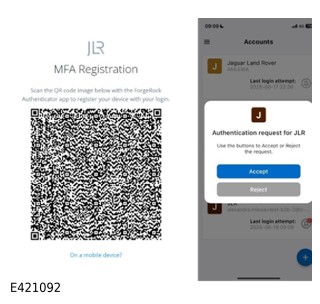
If you have ForgeRock Authenticator installed on your mobile device, but have never linked it to your created account follow the instructions below;
This method requires the ForgeRock Authenticator app to be installed on your mobile phone. If you do not already have this application installed, visit one of the options below :to download the application and install it.
- Apple store: Apple ForgeRock Authenticator
- Google Play Store: Android ForgeRock Authenticator
- You must enable notifications and camera access to allow QR code scanning for the ForgeRock Authenticator app.
- Select the Push Authentication option and select Next.
- If you haven’t already installed the ForgeRock Authenticator app, select on Get the App and follow the instructions.
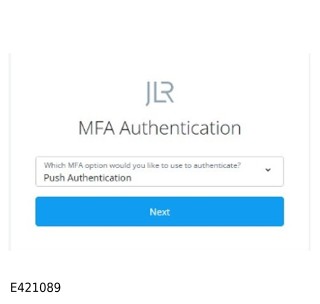
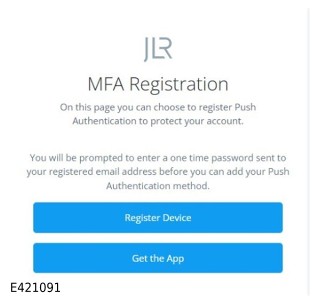
- When you have installed the ForgeRock Authenticator app, select Register Device. An email will be sent to your registered email address from noreply@jaguarlandrover.com.
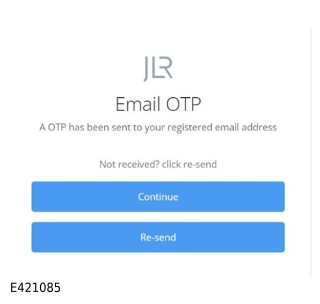
- If you do not receive an email first review your your spam and junk folders, if nothing has arrived select resend.
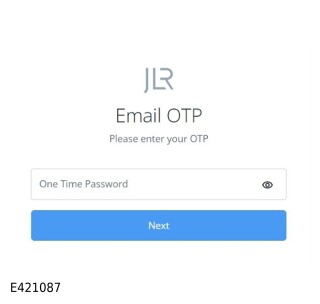
- When you have received an email, select Continue. Enter the One-Time Password (OTP) from the email into the field, and open the ForgeRock app. Select the Plus (+) icon and scan the QR code. This will set up the JLR account on your mobile phone.
- Accept the notification when it appears in the ForgeRock Authenticator app. You will then be authenticated in Enterprise Identity Platform (EIP).
Question 11
I have forgotten my Enterprise Identity Platform (EIP) password, how can I reset this?
Answer
To reset your password, enter your username on the Enterprise Identity Platform (EIP) log in screen. On the password entry screen, select Reset Password and follow the on-screen instructions.
Question 12
I have previously installed ForgeRock Authenticator and linked it to my Enterprise Identity Platform (EIP) account. Now I have changed my mobile device and wish to link my new device to my Enterprise Identity Platform (EIP) account. How do I do this?
Answer
Currently, users cannot add a new device themselves. This must be managed by the Retailer Helpdesk at retailer@jaguarlandrover.com.
To contact the help desk, email retailer@jaguarlandrover.com and use the following details:
Email Subject: Reset Linked Devices on Enterprise Identity Platform (EIP) Account.
Email:
Reset the linked devices on my Enterprise Identity Platform (EIP) account so I can add my new device.
Name:
Email address:
Username:
Retailer:
Question 13
I am not receiving the verification email containing the One-Time Password (OTP). What must I do?
Answer
Review your spam, junk, and quarantine folders. You must monitor the email address registered against your DSLID. If the email is not received, select Resend on the authentication screen and try again. Verification emails will be sent from noreply@jaguarlandrover.com.
Question 14
Must I complete Multi-Factor Authentication (MFA) setup immediately?
Answer
You may select Skip during the initial setup process. However, you will continue to be prompted to authenticate using Email One-Time Password (OTP) or configure another Multi-Factor Authentication (MFA) method when signing in to Enterprise Identity Platform (EIP).
Question 15
Can I register more than one mobile device against my Enterprise Identity Platform (EIP) account?
Answer
At present, users cannot independently register additional mobile devices. If you must replace or reset a registered device, contact the Retailer Helpdesk at retailer@jaguarlandrover.com for assistance.
Question 16
What must I do if I lose my mobile phone or uninstall my authenticator application?
Answer
Contact the Retailer Helpdesk by emailingretailer@jaguarlandrover.com and request that your linked authentication devices be reset. When completed, you can register a new device using the authentication setup process.
Question 17
What happens if I get a new mobile phone but keep the same phone number?
Answer
Authentication is linked to the registered device rather than the mobile phone number. You must have your linked device registration reset by the Retailer Helpdesk at retailer@jaguarlandrover.com before registering the new device.
Question 18
Can I still access TOPIx, Diagnostic Device Agent (DDA) and the TOPIx Companion App after migrating to Enterprise Identity Platform (EIP)?
Answer
Yes. When your Enterprise Identity Platform (EIP) account has been activated and Multi-Factor Authentication (MFA) has been configured, the same account can be used to access TOPIx, DDA and the TOPIx Companion App through the Authorized Repairer Two-factor Authentication (2FA) log in option.
Question 19
Must I complete Multi-Factor Authentication (MFA) every time I log in?
Answer
You may be prompted to authenticate using your configured Multi-Factor Authentication (MFA) method whenever you sign in. The exact experience can vary depending on your chosen authentication method, browser, device, and security policies.
Question 20
I accidentally selected the wrong Multi-Factor Authentication (MFA) setup option. What must I do?
Answer
You can return to the Multi-Factor Authentication (MFA) setup process and configure your preferred authentication method. If you encounter difficulties or become locked out of your account, contact the Retailer Helpdesk at retailer@jaguarlandrover.com for support.
Question 21
Can I use Enterprise Identity Platform (EIP) on both desktop and mobile devices?
Answer
Yes. Enterprise Identity Platform (EIP) supports authentication from desktop and mobile devices. Depending on the authentication method selected, you may need access to your mobile device to approve sign-in requests or provide authentication codes.
Question 22
The JLR Retailers and Staff – New Service option is not available to select / the Authorized Repairer Login (2FA) returns an error what do I do now?
Answer
If the JLR Retailers and Staff – New Service option does not allow you to access TOPIx for any reason, follow the instructions below. This is a temporary access workaround during the decommissioning of WSLx and roll out of 2FA for staff. The instructions will help you reset your local TOPIx password. If you continue to experience issues after following the instructions, contact your local help desk for further assistance.
- Go to the TOPIx page and select Independent Operator Login
- On the next screen, select Forgotten password.
- Enter your TOPIx email address (the email set in your TOPIx user options)
- You will receive an email with a link to the TOPIx page, where you can reset your password
- Log in as using the Independent Operator Login (this will give you your standard TOPIx access) using your username (this will be your CDSID) and password you've just set.
- If you are presented with an error, select the home button and Independent Operator Login again.
If you see an unsuccessful error - unable to send email at step 3, make sure that your email address is correct, clear your cookies and repeat the steps.
Question 23
Who must I contact if I am unable to access my account after following the setup guide?
Answer
If you are unable to access your account, have not received authentication emails, have forgotten your credentials, or experience issues with registered devices, contact the Retailer Helpdesk at retailer@jaguarlandrover.com.